Exploring Tekkotsu Programming on Mobile Robots:

VisualRoutinesBehavior and the SketchGUI Tool

Prev: Visual routines intro
Up: Visual routines intro
Next: Sketch primitives

Contents: VisualRoutinesBehavior, SketchGUI tool

VisualRoutinesBehavior

To make use of the visual routines/dual coding primitives, your program should include the file "DualCoding/DualCoding.h", and your behavior should be an instance of VisualRoutinesBehavior instead of BehaviorBase. VisualRoutinesBehavior sets up a series of sketch and shape spaces, and provides the network interface that allows you to examine these spaces via the SketchGUI tool.

Here is a sample program showing how to set up a visual routines behavior:

#ifndef _DstBehavior_h_
#define _DstBehavior_h_

#include "DualCoding/DualCoding.h"
using namespace DualCoding;

class DstBehavior : public VisualRoutinesBehavior {
 public:
  DstBehavior() : VisualRoutinesBehavior("DstBehavior") {}

  void DoStart() {
    VisualRoutinesBehavior::DoStart();

    NEW_SKETCH(camFrame, uchar, sketchFromSeg());
    NEW_SHAPEVEC(blob_shapes, BlobData, BlobData::extractBlobs(camFrame,100));
  }

};

#endif

The NEW_SKETCH macro imports a color-segmented camera image as a "sketch". The NEW_SHAPEVEC command creates a vector of blob shapes, where the blobs are extracted from the color-segmented camera image. This behavior does not produce any printed output. But we can use the SketchGUI tool to examine the results of the computation.

Explore More:

  1. Look up the online documentation for VisualRoutinesBehavior. Remember that it is in the DualCoding namespace. (From the Tekkotsu Reference Documentation home page, click on the DualCoding namespace to access this documentation.)

  2. Look up the documentation for the class member "camSkS". Where is it defined?


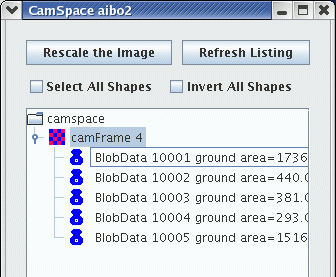
The SketchGUI tool The SketchGUI tool is used to examine the sketches and shapes your program constructs. You launch it by clicking on the "C", "L", or "W" buttons in the ControllerGUI. Since we're initially working only in camera space, you will want to use just the "C" button for now.

Using SketchGUI

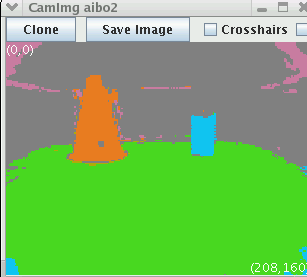
  1. Compile and run DstBehavior, either on the simulator or on the AIBO. If you're using an AIBO, make sure the camera is pointing at some objects with recognizable colors. (You can call up the SegCam viewer to verify that the AIBO is segmenting the image correctly.) If you're using the simulator, you can use this test image:

  2. While DstBehavior is running, launch the SketchGUI for camera space by clicking on the "C" button in the ControllerGUI.

  3. In the SketchGUI menu, click on "camFrame" to select and display the camFrame sketch. The result should look like this:

  4. Control-click (hold down the control key while clicking with the mouse) to deselect the camFrame sketch. Then turn on the "Select All Shapes" checkbox. The result should look like this:

  5. To view the sketch and shapes at the same time, turn on the "Invert All Shapes" checkbox, and then re-select camFrame.

Prev: Visual routines intro
Up: Visual routines intro
Next: Sketch primitives


Dave Touretzky
Last modified: Wed Jan 30 01:32:22 EST 2008